
Skills Matrix app – Help Link
Welcome to the Skills Matrix App support page. Follow the steps below to successfully connect your data to the app and start gaining insights into your team's skills and performance.
Step 1: Prepare Your Excel Sheet
Please organize your data for all your employees in the attached Excel file named "Overview Skills Matrix List" including the following columns:
Note: Please do not rename the columns, as this will affect the Skills Matrix Report.
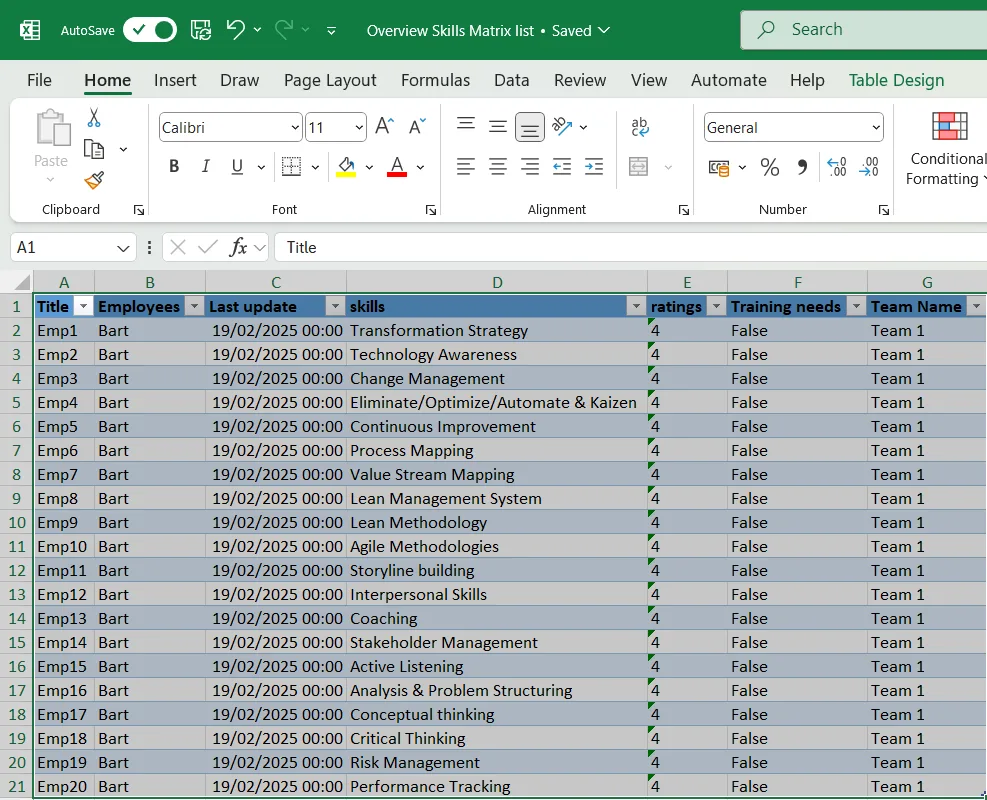
- Title: Title or the id of the line.
- Employees: Name of the employee.
- Last update: The date when the information was last updated.
- skills: The specific skill being rated. Users can select which skills they want to include in their skills matrix.
- ratings: The proficiency rating for the skill, measured on a scale of 0 to 5, where:
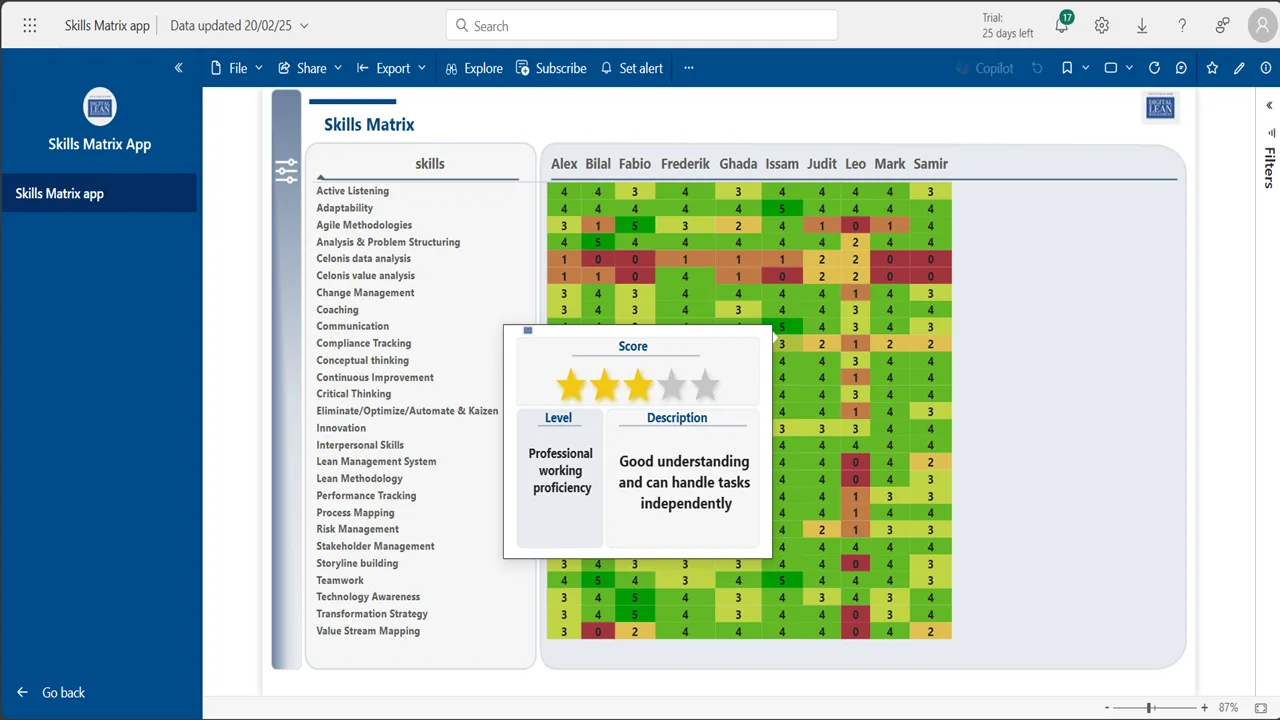
{0, "No proficiency", "No experience or understanding of the skills"}, {1, "Basic understanding", "Limited experience and basic understanding of the skills"}, {2, "Limited working proficiency", "Some practical experience and can perform tasks with supervision"}, {3, "Professional working proficiency", "Good understanding and can handle tasks independently"}, {4, "Full professional proficiency", "Strong understanding and can monitor others"}, {5, "Expert proficiency", "Deep expertise and recognized authority in the skills"} - Training Needs: Indicates whether training is needed (Yes/No).
- Team Name: The team to which the employee belongs.
Please find an Excel template for filling in your own employees data.
Download Overview Skills Matrix list.xlsx
Step 2: Import Your Data to Microsoft list
Microsoft Lists:
Microsoft Lists is a SharePoint-based platform that allows organizations to track and manage information through imported Excel data. This platform is essential for setting up the Skills Matrix application to monitor employee competencies and development needs.
Access Microsoft Lists:
- Sign in to your Office 365 account.
- Open the "Lists" app from the App launcher.
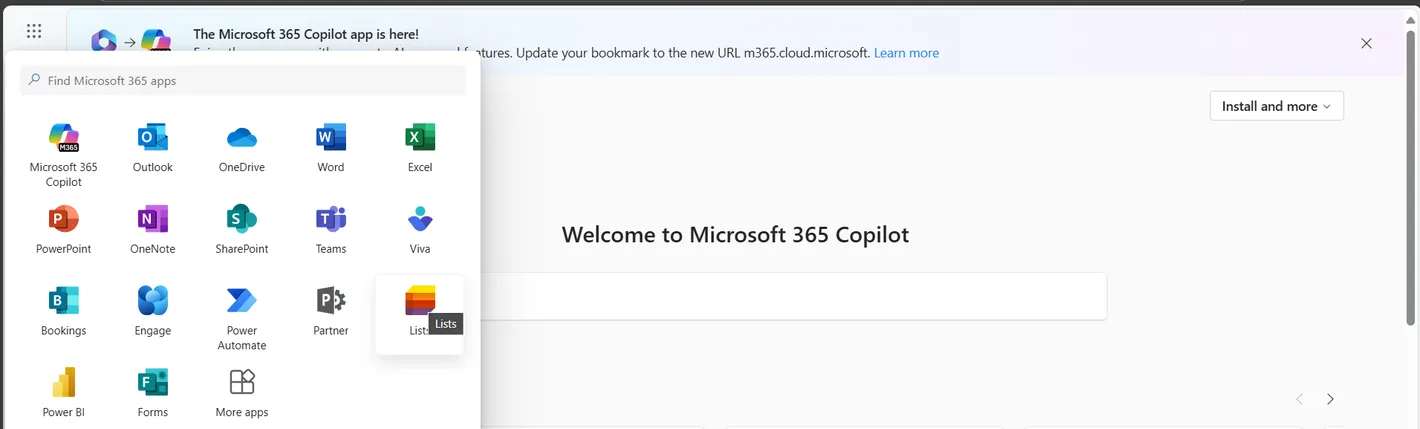
Create a New List:
- Click on "New list" in Microsoft Lists

- Select "From Excel" as your data source
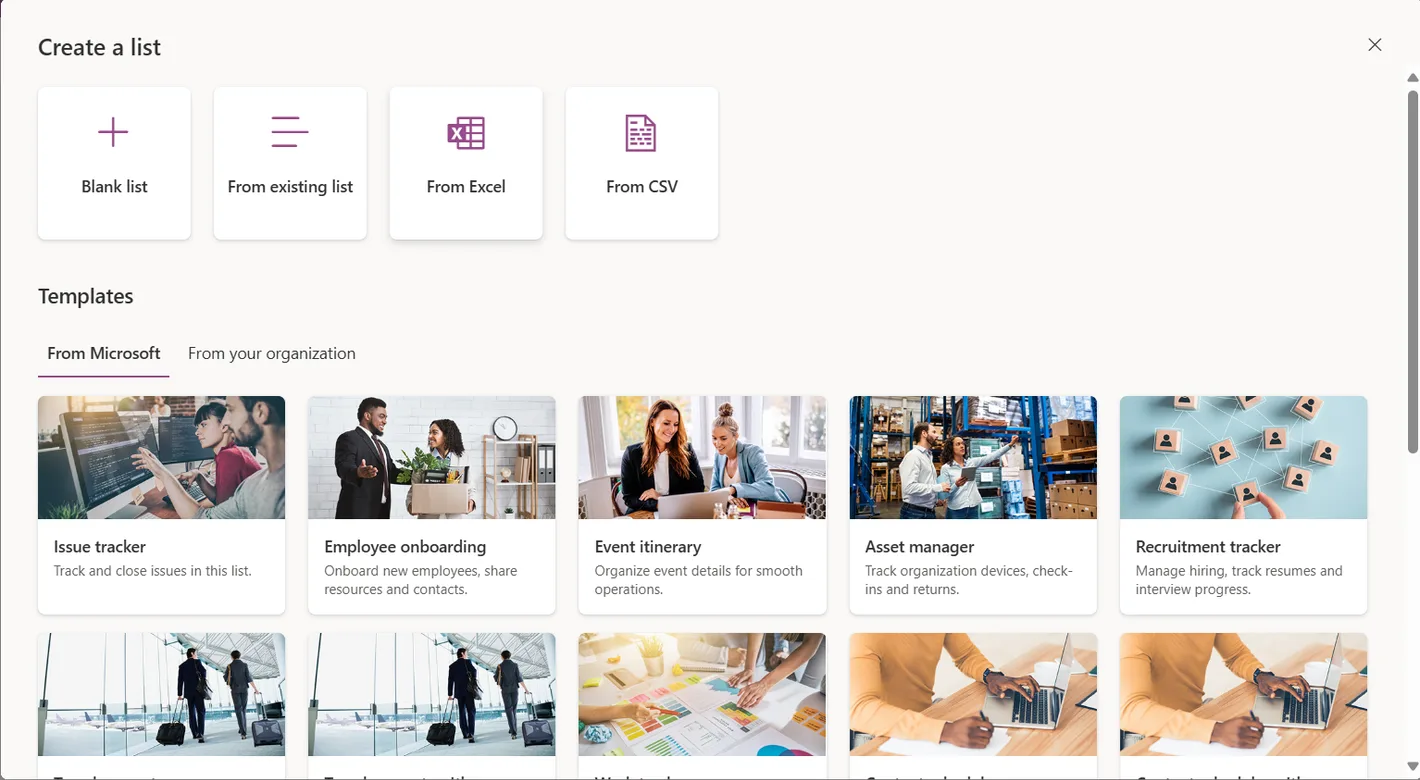
- Upload your prepared Excel file
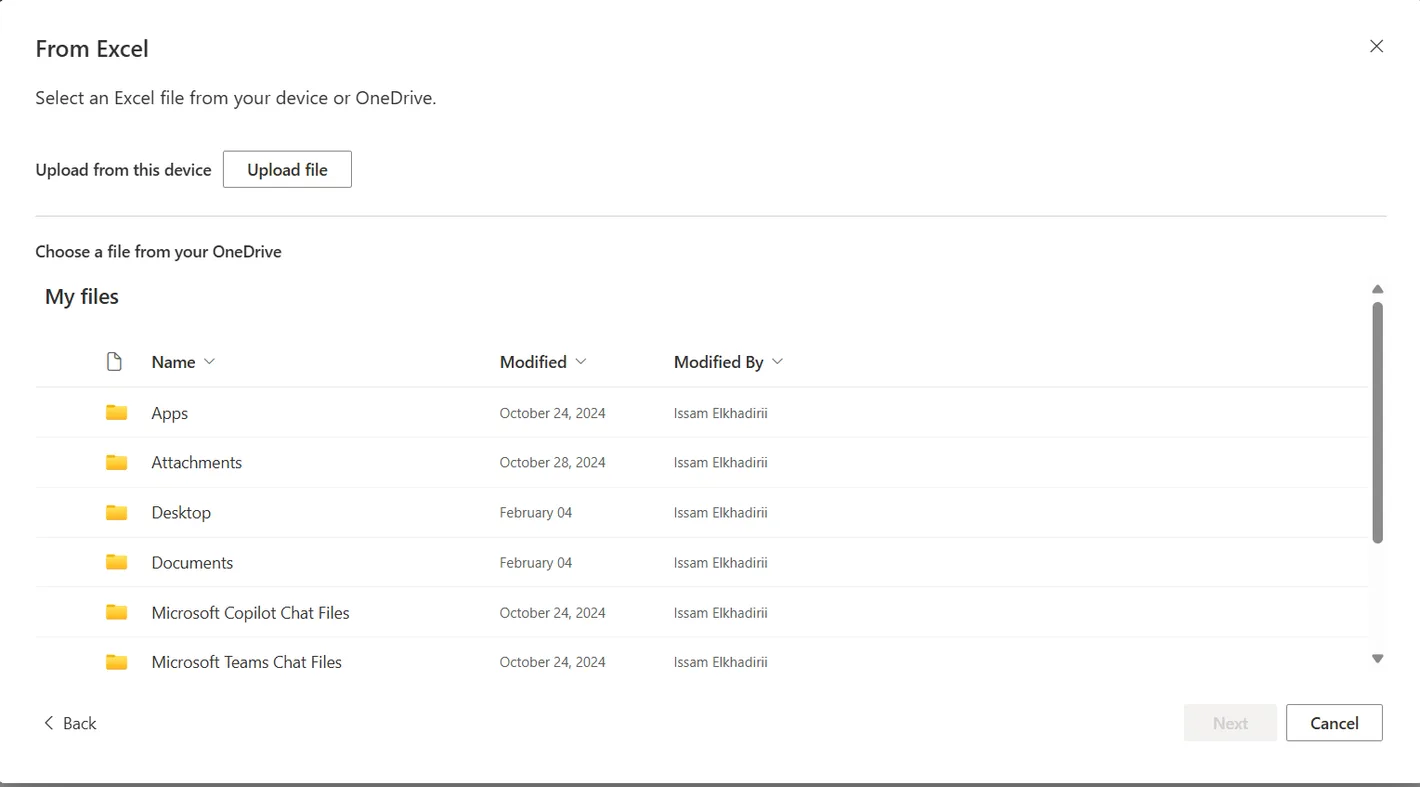
- Verify column mappings:
- Ensure all column names match your Excel headers
- Confirm that the correct data types are assigned to each column.
- Change the 'Last Update' column to 'Date and Time' to accurately record the date and time of the last update.
- Change the 'Skills' column to 'Choice' to enable a predefined list of skills
- Change the 'Ratings' column to 'Choice' to enable a predefined list of ratings from 0 to 5, as previously described.
- Keep the 'Title' column unchanged; it should remain as type "Title" to represent the ID or title of each line.
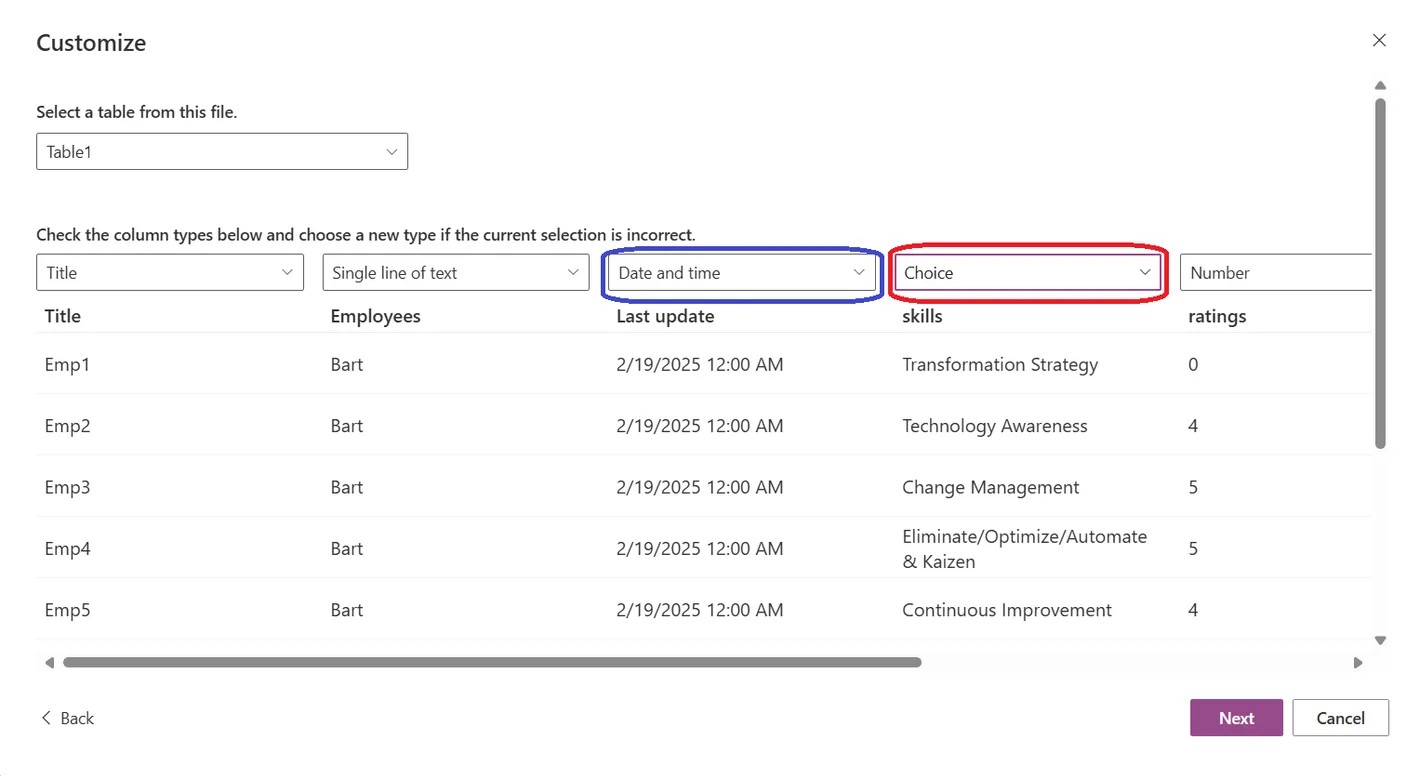
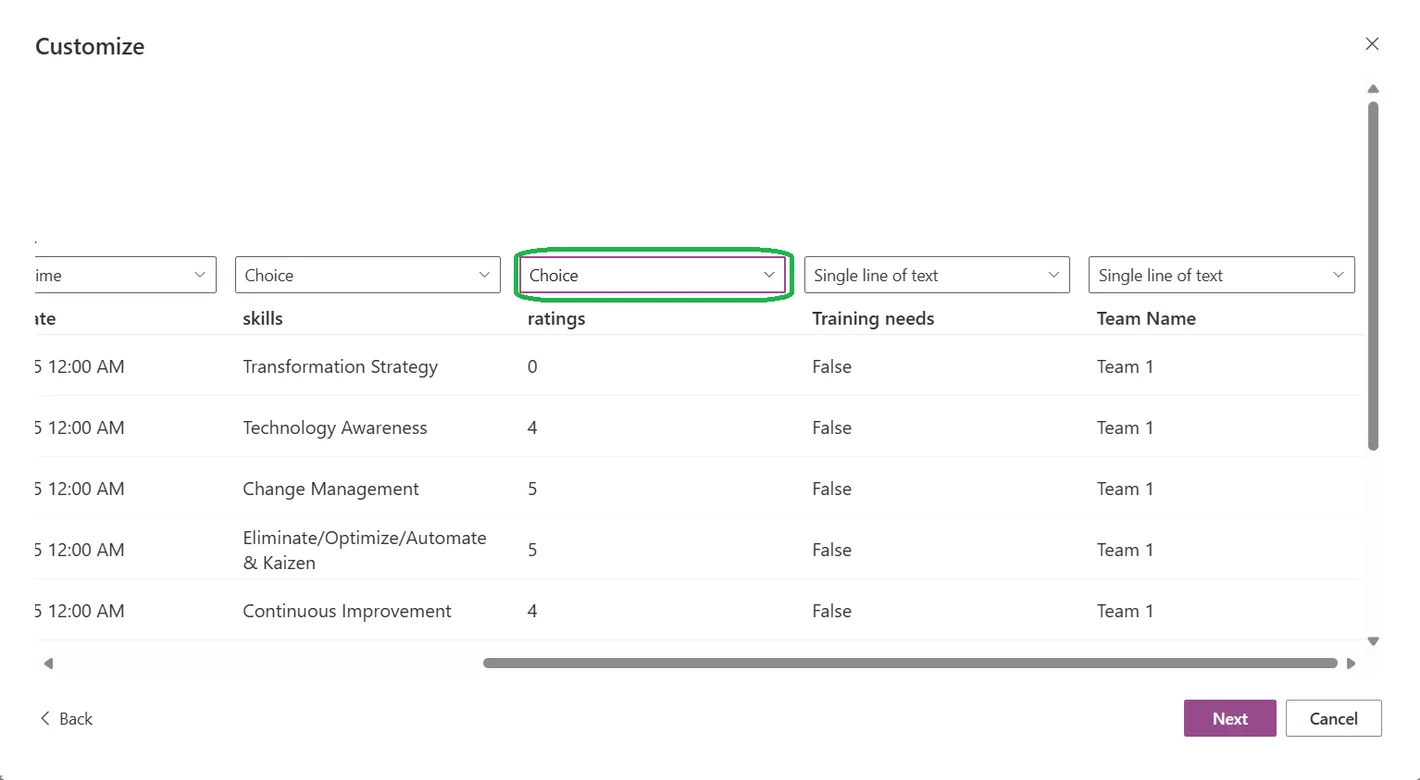
- Keep all other columns (Employees, Training Needs, and Team Name) as 'Single Line of Text' without changes.
- click Next
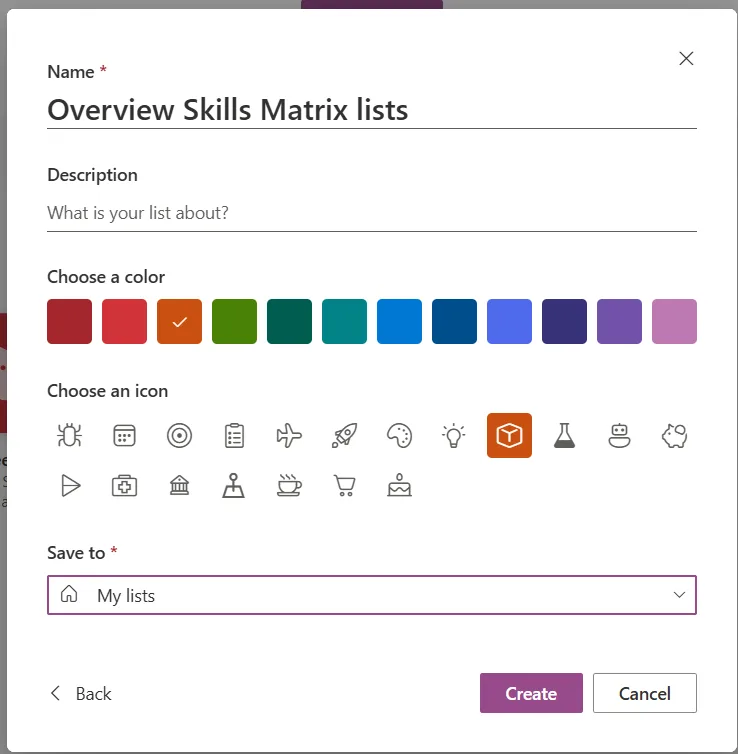
- Click "Create" to generate your list, keep the same name.
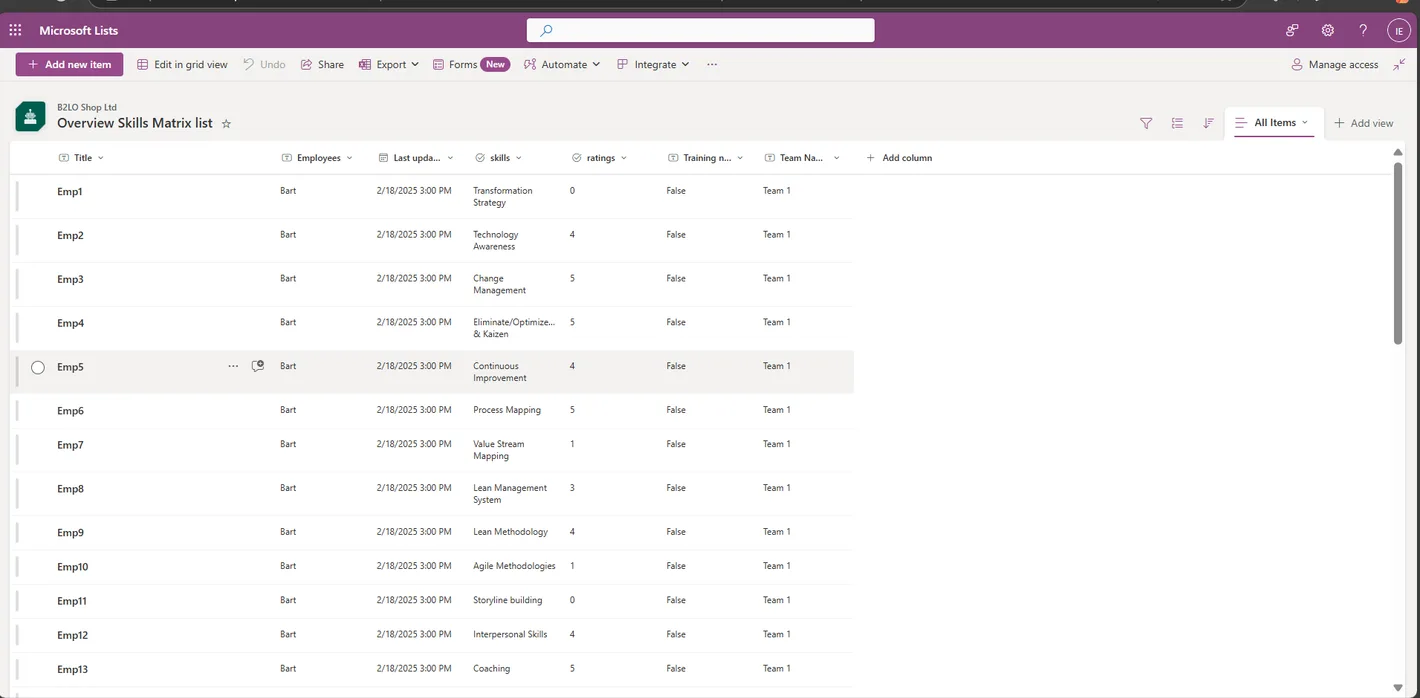
- Verify your data
- Select "From Excel" as your data source
Step 3: Install the Skills Matrix App
Access Power BI Service:
- Log in to your Power BI account.
- Navigate to the “Apps” section from the left-side menu.
Get the App:
- Click on “Get apps” and search for “Skills Matrix.”
- Click “Get it now” to install the app in your workspace.
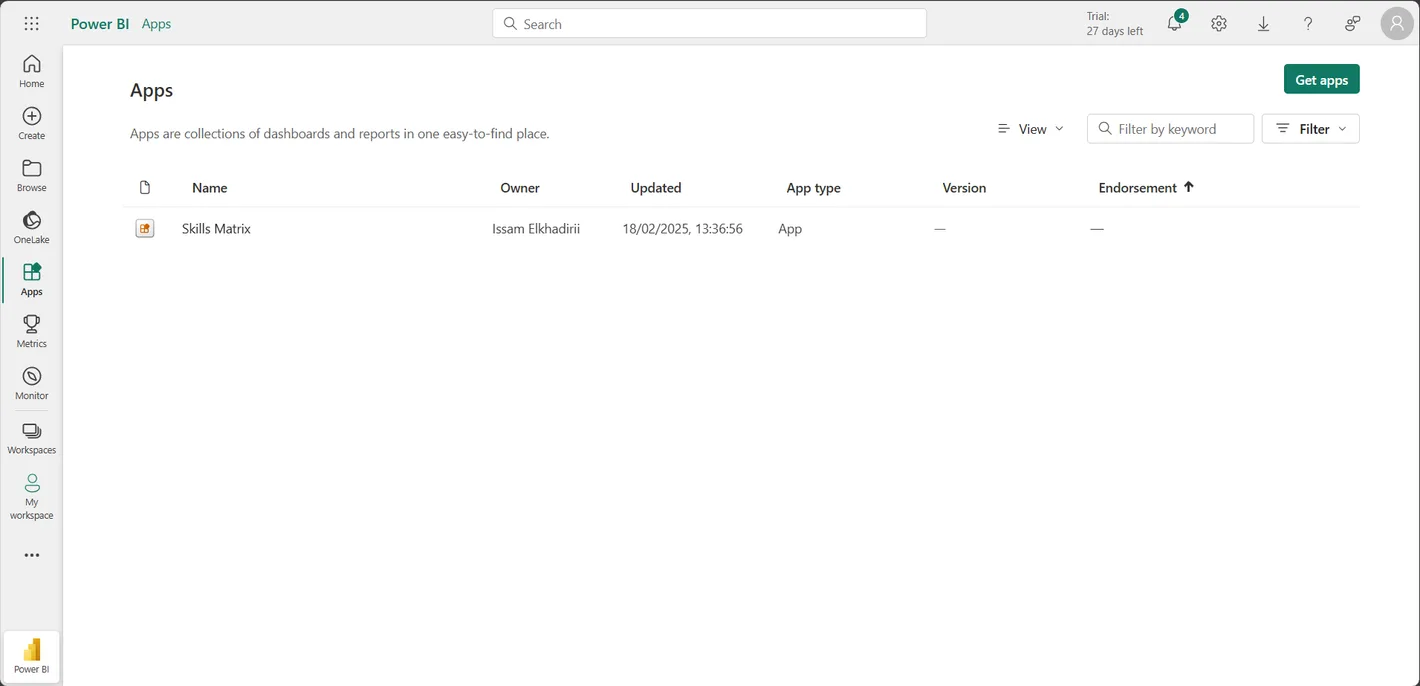
Step 4: Connect to Your Data on Ms lists
Launch the App:
- Open the installed app from your Power BI workspace.
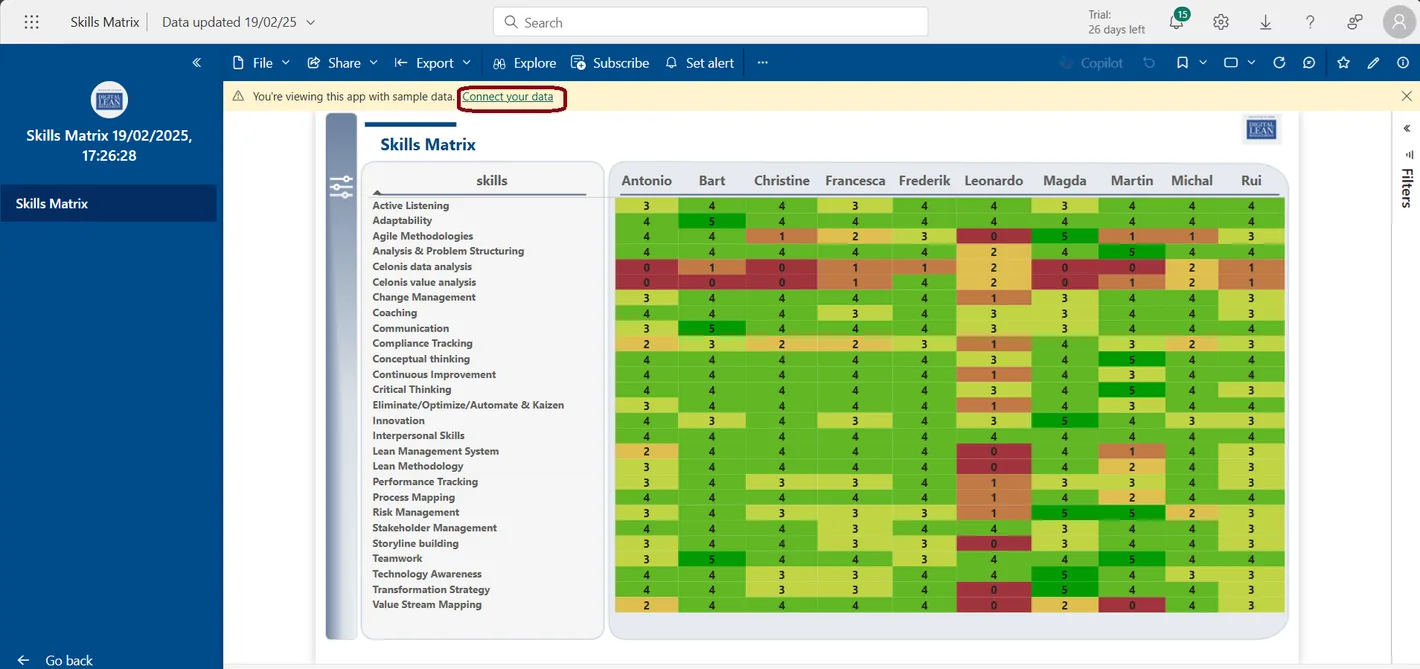
- The app will prompt you to connect to the created “Overview Skills Matrix List” in Microsoft lists.
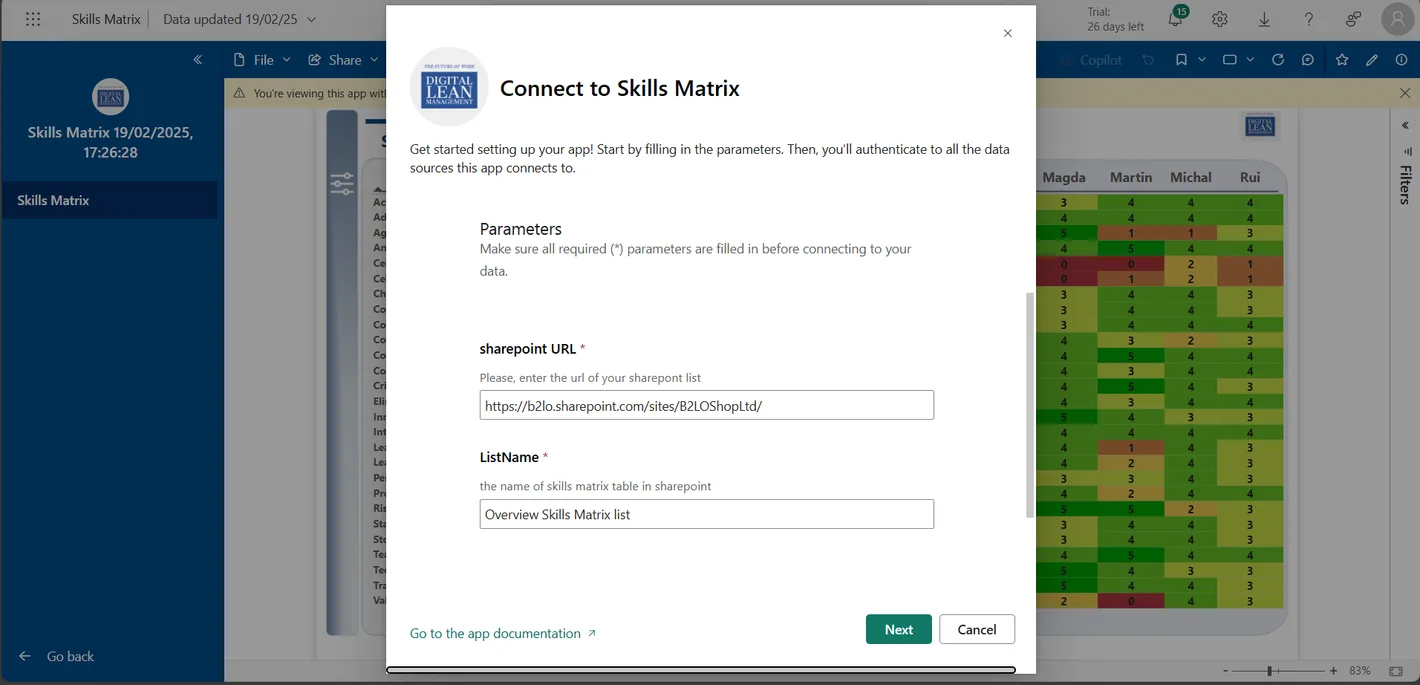
Parameter Details:
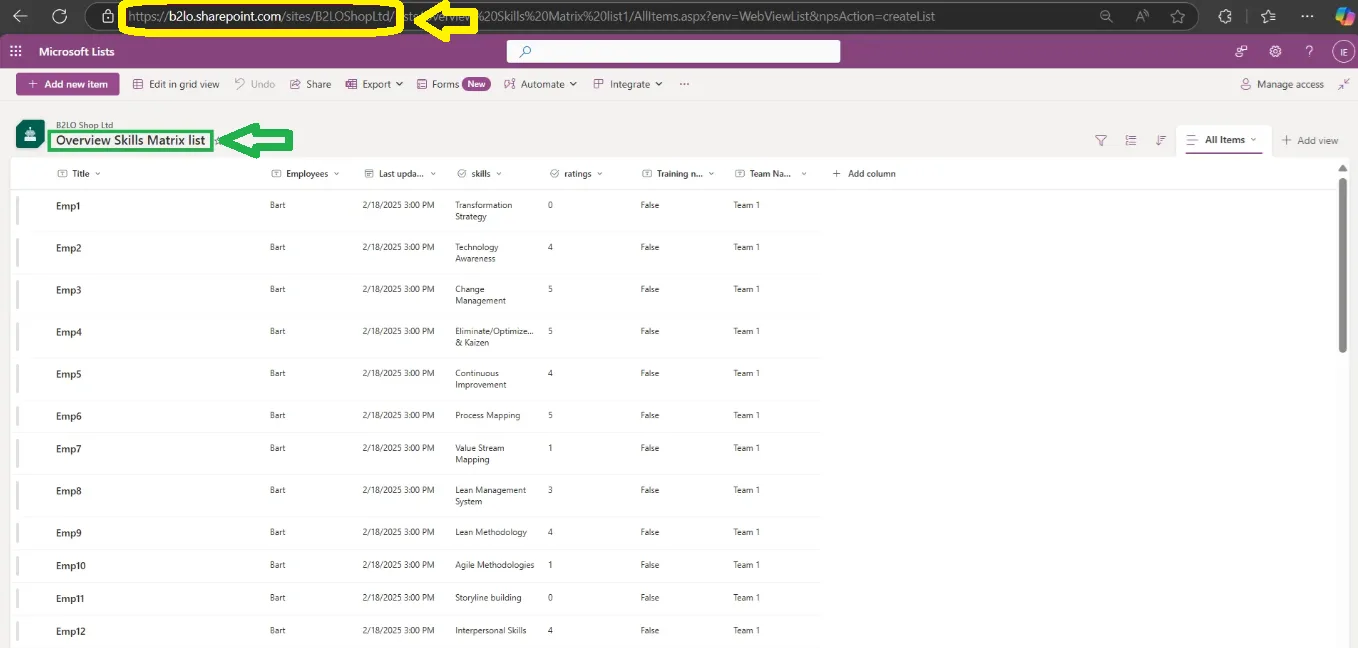
- SharePoint URL Parameter: This is the URL that links directly to your Skills list hosted on Microsoft Lists. This URL is necessary for the app to fetch data from the correct list and should match exactly as shown in the screenshot provided above.
- List Name Parameter: This refers to the exact name of your Skills list within Microsoft Lists. It is crucial to ensure this name is entered accurately to avoid any connection issues. Like the URL, as shown in the above screenshot.
Ensure both parameters are input precisely as they appear in the provided screenshots to facilitate a successful connection to your data source.
- click Next
Authentication:
- Enter your Outlook Email Address in the provided field.
- Select OAuth2 as the authentication method.
- Choose the appropriate Privacy Level (“Organizational”).
- Click Sign in and connect to authenticate.
Advanced Options (Optional):
- Expand the Advanced section if additional settings are needed for your specific analysis.
- Click Next to proceed.
Validation:
- Ensure that all required fields are filled correctly. If fields are missing or incorrectly formatted, they will be highlighted in red.
- Correct any errors and click Next again.
Step 5: Load Your Data
Data Loading:
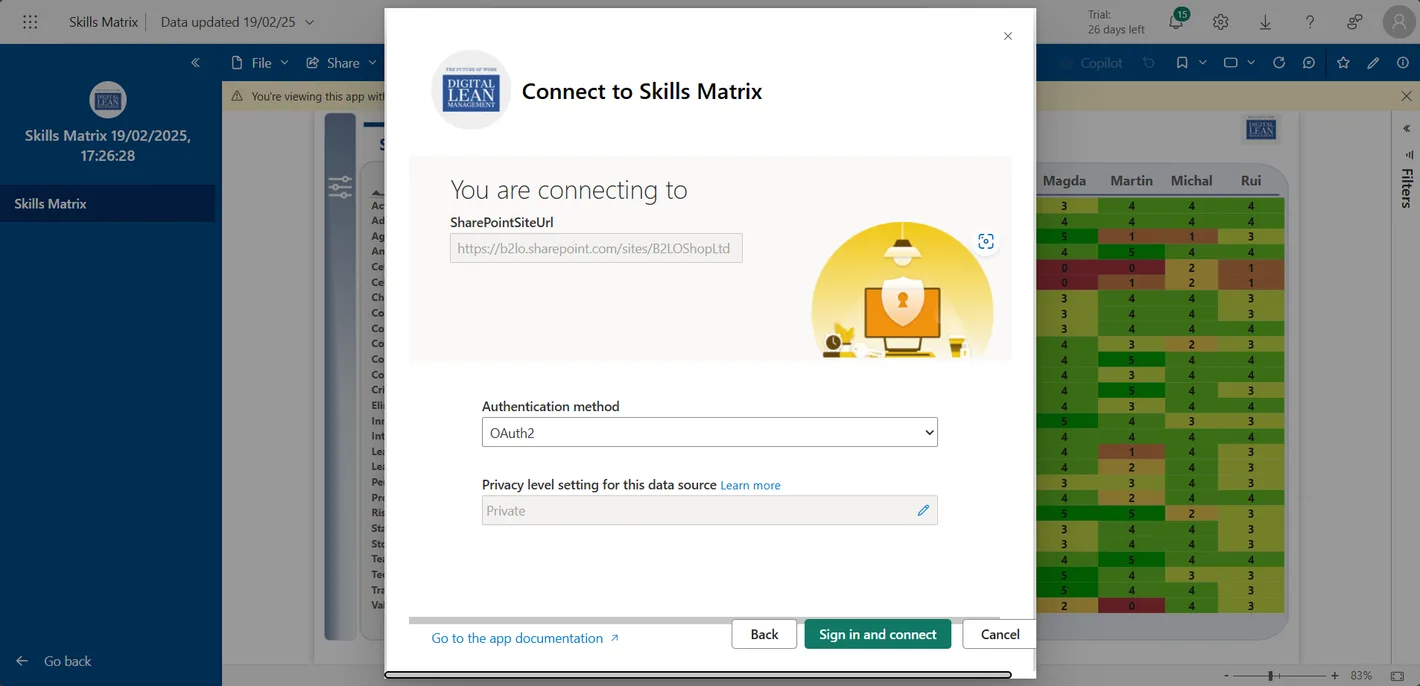
- Once you’ve successfully connected your SharePoint URL and configured the parameters, the app will begin loading your employee skills data.
- This process may take a few moments depending on the data volume.
Explore the Dashboard:
- After the data is loaded, you will be redirected to the main dashboard where you can start exploring insights such as employee ratings on various skills.
Step 6: Load Your Data
Connection Issues: If you encounter issues connecting to your SharePoint MS List, verify that your credentials are accurate and that you possess the necessary permissions within your organization’s Office 365 environment.
Parameter Errors: If the app does not accept your parameters, please double-check that the SharePoint URL and list name are entered correctly.
Need Additional Help?
If you require further assistance, contact our support team
at Hello@digitalleanmanagement.com. We’re here to help!